Lightweight Laptops for Business Travel: What to Compare Before You Buy
A useful business travel laptop makes the journey easier and lets you work without rebuilding your setup at every stop. Low weight matters, but so do a charger that fits your bag, a keyboard you can use for an afternoon and a reliable way to connect to the display in a meeting room. The right comparison starts with the complete working arrangement you expect to carry.
Write down a representative trip before drawing up a shortlist. Include the journey, the longest period without a convenient socket, the meetings you normally attend and the applications that must work. Someone editing spreadsheets between client visits has different needs from a consultant carrying a specialist development environment. Compare the machines against that itinerary, using the exact configuration and regional specification offered by the seller.

Weigh the complete kit
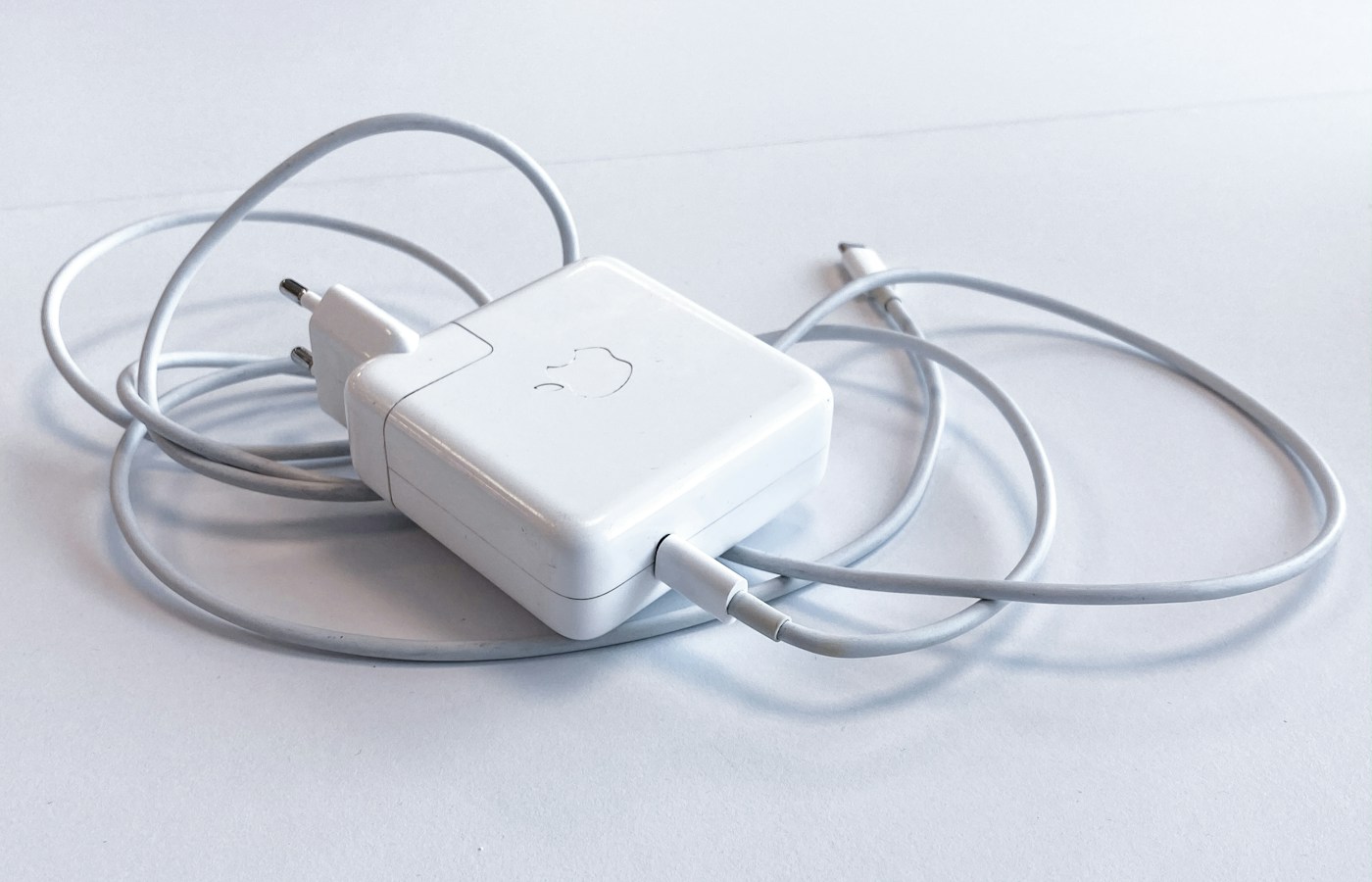
List the laptop, power adapter, cable, protective sleeve and connection accessories. A lower computer weight is useful, but the saving can shrink if that machine needs extra adapters or a second charger. Use measured weights for items you already own and published figures for products you are considering. Keep those two types of information separate so the total remains easy to check.
For an illustrative comparison, a 1.05 kg computer carried with 0.45 kg of accessories totals 1.50 kg. A 1.25 kg computer with a 0.20 kg accessory kit totals 1.45 kg. These are hypothetical packages, not measurements of particular products. The example explains why a slightly heavier laptop can still produce a lighter bag. Also measure the available sleeve compartment: screen diagonal alone does not establish whether a computer fits.
| Item | Record before buying | Practical question |
|---|---|---|
| Laptop | Configured weight and outside dimensions | Does it fit the bag and the working surface? |
| Charger and cable | Combined weight, connector and output | Can this kit support the intended charging schedule? |
| Meeting adapters | Display and peripheral connections | What must be carried for typical client rooms? |
| Sleeve or case | Usable internal space and weight | Is there enough protection without an awkward fit? |
Use documented models to understand the trade-offs
Apple's specification for the 13-inch MacBook Air with M4 identifies a 1.24 kg computer with two Thunderbolt 4 ports and a separate MagSafe charging connection. That combination is relevant if your software works on macOS and you intend to keep the USB-C connections available while charging through MagSafe. It does not remove the need to check the display connector used at your destination.
Lenovo's ThinkPad X1 Carbon Gen 13 Aura Edition PSREF records USB-C Thunderbolt 4 connections with USB Power Delivery support. Read the detailed record for the actual machine type rather than assuming every unit in the family has identical display, memory or wireless options. These two families illustrate different ways to assemble a mobile working setup; they are comparison examples, not a claim that one suits every traveler.
| Documented example | Detail to investigate | When it matters |
|---|---|---|
| 13-inch MacBook Air, M4 | macOS software fit, two Thunderbolt 4 ports and MagSafe charging | An existing Mac workflow with a compact connection kit |
| ThinkPad X1 Carbon Gen 13 Aura Edition | Exact PSREF configuration, USB-C power input and regional support | A Windows workflow with defined business configuration needs |
| Any shortlisted configuration | Memory, storage, display and bundled adapter | Avoiding a family-level specification being mistaken for the ordered machine |
Compare battery evidence with the work you will do
Manufacturer battery claims describe a test, not your entire travel day. Video playback, web browsing and a call with background blur put different demands on the computer. Record the test description beside the advertised result, then estimate how much of your day involves each task. Display brightness, connectivity, background applications and the age of the battery also belong in the operating plan.
Arrange a representative trial where possible: your browser tabs, an ordinary document, a real meeting application and the brightness you expect to use. Record the starting and ending charge without converting one brief observation into a universal endurance figure. Build a reserve into the schedule for delayed trains or a longer meeting. A dependable charging opportunity between sessions can be more useful than an ambitious headline number.
Plan the charging break and the meeting connection
Check the supplied adapter and the laptop manufacturer's requirements for ordinary charging and faster charging. Apple's M4 MacBook Air specification distinguishes the included adapter options from its 70W fast-charge capability. The practical lesson is to compare the charger-and-cable combination you will actually use. Connecting a phone to a shared charger may change the power available to the laptop, so read the adapter's multiport allocation as well.
For meetings, identify the input on the room display and the cable you can reasonably expect to find. Intel describes Thunderbolt as a way to connect power, displays and peripherals through USB-C, but the complete arrangement still depends on the computer, dock, cable and screen. Prepare the required HDMI or other adapter before traveling, and check the intended resolution and refresh rate with the actual setup.
Put application and peripheral compatibility first
Create a short acceptance checklist covering office software, the company VPN, security tools, printers, authentication devices and specialist applications. A familiar operating-system name does not resolve every compatibility question. Microsoft explains that Windows on Arm can run many applications through native versions or emulation, while hardware and applications that depend on drivers still need appropriate Arm support. Check the exact dependency with its publisher.
Complete the same exercise when moving between Windows and macOS. Open a representative file, test the required add-ins and confirm the collaboration process used by your clients. Include installation permissions: a technically compatible dock or application is less helpful if company policy prevents you from installing its supporting software. Obtain the approval before a trip rather than trying to solve it from a hotel room.
Choose the machine that makes the whole trip simpler
Once the shortlist works with your software, try the physical tasks that repeat throughout the day. Type several paragraphs, navigate a large spreadsheet, join a call and read a document at a comfortable size. Look at the keyboard layout, camera framing, microphone settings and position of the power cable. These checks reveal whether the attractive specification translates into a comfortable working arrangement for you.
Finish by writing a packing list and a recovery plan. Keep the charger, meeting adapter and required credentials together, and confirm how files remain available if the main computer is unavailable. Compare purchase quotations only after the memory, storage, adapter and support scope are aligned. The strongest travel choice is the laptop that covers your real work with a manageable kit and few unresolved dependencies.
What to take into your shortlist
Compare the complete travel kit, charging arrangements, meeting connections and software requirements before choosing a lighter business laptop.
- Compare laptop, charger, adapters and sleeve as one travel kit rather than comparing the computer's weight alone.
- Match the exact operating system, processor architecture and peripheral requirements to your work before choosing a model.
- Plan meeting connections and charging breaks around the actual ports and power arrangement of your chosen configuration.